
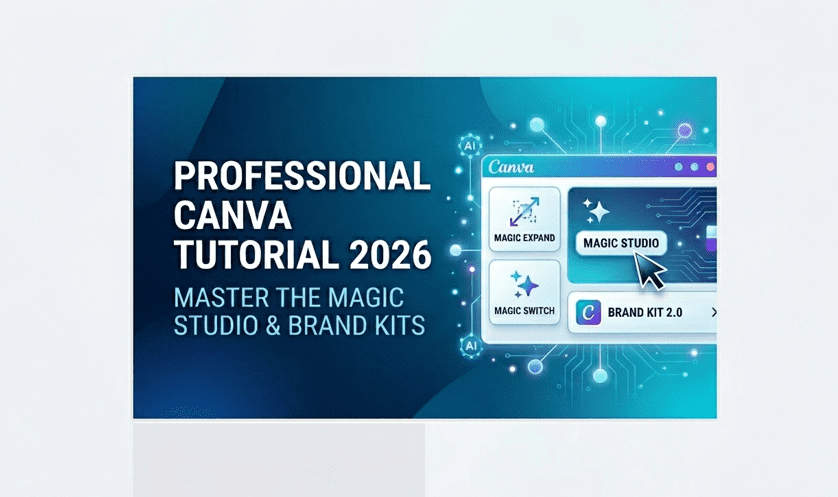
Let’s be real: most Canva designs look like they were made in five minutes by someone who just discovered the internet. If you are tired of your brand blending in, finding the right Professional Canva Tutorial 2026 is the only way to stand out.
I remember struggling to make my first client presentation look decent. It wasn’t until I stopped relying on basic free templates and started mastering Canva’s hidden AI ecosystem that my workflow completely changed. In this Professional Canva Tutorial 2026, I am going to walk you through the exact strategies that save my team hours of manual labor every single week.
Why You Need a Professional Canva Tutorial 2026 Today
In previous years, traditional designers used to laugh at Canva. Today? Even top-tier agencies use it as their central hub. By utilizing the advanced techniques we cover in this Professional Canva Tutorial 2026, you can automate the repetitive parts of design and focus purely on creativity.
If you are setting up a business from scratch and want to connect your new design skills with your daily tasks, I highly recommend checking out our guide on building automated AI workflows. It provides the perfect technical foundation to pair with your creative assets.
Step 1: Master the Canva Brand Kit
Before you touch a single graphic, you must set up your Brand Kit. I cannot stress this enough—skipping this is the biggest mistake beginners make. This is the true foundation of any Professional Canva Tutorial 2026.
- Logos: Upload your logos in high-quality SVG format.
- Colors: Set your primary and secondary color palettes.
- Voice: Define your “Brand Voice” so the AI generates text that actually sounds like you.
For a deeper understanding of how these assets are managed, you should consult the official Canva Brand Kit documentation to see the full potential of their Pro features.
Deep Dive: Essential Magic Features for 2026
When I first saw Canva’s Magic Studio, I thought it was just a marketing gimmick. I was completely wrong. If you want to follow this Professional Canva Tutorial 2026 correctly, these are the tools you need to integrate today:
1. Magic Switch: Multi-Platform Mastery
Gone are the days of manually resizing an Instagram square post into a LinkedIn banner. With Magic Switch, you can transform a single design into a multi-channel campaign in one click.
2. Magic Expand & Generative Fill
Did you take a vertical photo but need it for a horizontal website header? Use Magic Expand. It generates a realistic background that matches your original shot perfectly. This AI capability is exactly why a Professional Canva Tutorial 2026 focuses so heavily on the new Studio features.
3. Visual Suite 2.0: Collaboration at Scale
Professional design isn’t a solo sport anymore. The new Visual Suite allows for real-time co-editing and integrated design approvals directly on the canvas, eliminating endless email threads.
Comparative Analysis of Canva Professional Tiers
Troubleshooting: Common Professional Canva Issues in 2026
Even with a Professional Canva Tutorial 2026, things don’t always go perfectly. Here is how to fix the most common roadblocks professionals face:
Why is my Magic Expand looking blurry?
This usually happens when the original image resolution is too low. For a professional finish, ensure your base image is at least 300 DPI. Magic Expand works by predicting pixels; if it has “bad data” to start with, the generated background will look artificial.
My Brand Kit isn’t applying to all pages
Check your Layer Lock settings. In the 2026 update, locked elements are ignored by the “Apply Brand to All” command. Unlocking your layers before applying your palette will save you about 20 minutes of manual clicking.
My Personal Take: Design with Purpose, Not Just Pixels
I’ll be totally honest: the biggest mistake I see people make after taking any Professional Canva Tutorial 2026 is using too many effects just because they are available. I’ve learned the hard way that a “Magic” feature is only as good as the strategy behind it.
If you want to see how this compares to other AI image generators, you’ll see that Canva is about speed, while other tools are about raw artistic power.
Start by auditing your brand. Master your fonts and colors first, and then let the AI scale your work. The future of your brand depends on choosing the right Professional Canva Tutorial 2026 approach for your specific business goals. The future of design is already in your browser; make sure you’re using it to its full potential.
Professional Canva Tutorial 2026: Frequently Asked Questions
To wrap up, let’s address the most common technical questions regarding the Professional Canva Tutorial 2026 workflow and how to maximize your Pro subscription.
Is Canva Pro worth it for professionals in 2026?
Absolutely. While the free version is great for basic tasks, the Professional Canva Tutorial 2026 workflow relies heavily on Magic Switch and Brand Kits. These Pro-only features automate the tedious parts of design, allowing you to focus on strategy. The time saved on resizing assets for different platforms usually pays for the subscription in a single project.
Can I use Canva for high-end print production?
Yes, you can. In 2026, Canva’s PDF/X-4 export settings have improved significantly. To ensure your professional designs look perfect on paper, always select “CMYK” instead of “RGB” in the download settings and include “Crop marks and bleed” as explained in this Professional Canva Tutorial 2026.
How does Canva’s AI compare to Adobe Firefly?
It’s a matter of speed versus granular control. Canva’s Magic Studio is designed for marketers and business owners who need high-quality results in seconds. While Adobe offers more tools for digital illustrators, most users following a Professional Canva Tutorial 2026 find that Canva’s interface is much more efficient for daily content creation.
Does Canva 2026 support advanced video editing?
It does. The 2026 video suite includes “Magic Beat Sync,” which automatically aligns your clips to your background music. It’s a game-changer for creating professional Reels and TikToks without needing a separate video editor.
Can I share my Brand Kit with external clients?
Yes. If you have a Canva Teams account, you can set up a “Client Folder” and share specific Brand Kit assets without giving them access to your entire professional dashboard. This is a key part of the Professional Canva Tutorial 2026 for agency owners.
My Honest Take: Is AI Replacing the Designer in 2026?
Look, I’ll be 100% real with you to wrap this up. After spending hundreds of hours putting together this Professional Canva Tutorial 2026, I’ve realized one thing: the AI isn’t going to do the “thinking” for you.
I see so many people getting excited about Magic Studio, clicking buttons like crazy, and then wondering why their designs still look… well, cheap. The “Magic” in Canva is a tool, not a shortcut for a lack of vision. My advice? Don’t let the software dictate your brand. Use these features to handle the grunt work—the resizing, the background removal, the color matching—so you can actually spend your time on what matters: the strategy.
Design with a purpose, not just because a button says “Magic.” If you master that balance, you won’t just be “using Canva”; you’ll be building a high-end brand that looks expensive but costs you almost zero manual effort.
Now, stop reading and go break something in the editor. That’s the only way you’ll truly learn. See you in the next one!